How to do ICEGATE Login & Registration 2026: The Direct Link, and Fixes for the Most Common Errors
Direct link to the ICEGATE login page, plus fixes for the most common errors - DSC not detected, password reset, and "user does not exist".
Listen to article
Audio version (0% complete)
ICEGATE (Indian Customs Electronic Data Interchange Gateway) is the official online portal of Indian Customs where importers, exporters, and customs brokers file all customs documents electronically. ICEGATE enables electronic filing of Bills of Entry (imports), Shipping Bills (exports), IGM (Integrated Manifest), and online payment of customs duties. ICEGATE is the digital gateway for all international trade through India, managed by the Central Board of Indirect Taxes and Customs (CBIC). Understanding ICEGATE login process, how to file documents, download shipping bills, and register AD codes is critical for any importer or exporter operating in India.
Most "what is ICEGATE" guides you'll find were written before 2026 and are now quietly wrong in three places - how you register, how you track and download documents, and above all how you pay customs duty.
If you are here just to log in to ICEGATE, use the official portal link below
ICEGATE Login URL: https://www.icegate.gov.in
Importers: Log in with your IEC-linked user ID to file Bills of Entry, track consignments, and pay customs duty online.
Exporters: Use your ICEGATE ID to file Shipping Bills, track export incentives, and download acknowledgements and documents.
Customs Brokers / CHA: Log in with your CHA code to file documents on behalf of multiple clients and manage all IECs from a single dashboard.
Most Common ICEGATE login errors and the troubleshooting
Login itself is an ID, password, and CAPTCHA, But there are many recurring problems beyond this - the four most common are mentioned below:
- DSC not detected / PKI component error. Almost always a browser or token issue, not an ICEGATE issue. Use a supported browser, make sure the emSigner/DSC utility and Java components are running, plug in your USB token, and select the correct Class 3 certificate. If the signature keeps failing, check your system clock, a differnce of more than a couple of minutes breaks DSC signing.
- OTP not arriving. The OTP goes to the mobile and email registered on your GSTN/DGFT profile, not whatever you typed. Confirm those are current, check spam, wait, then resend.
- Account locked. A few wrong password attempts or long inactivity locks the ID. Reset via "Forgot Password" first; if the DSC-based reset also fails, you're into a manual reset with the helpdesk.
- Forgot password. "Forgot Password" -> enter IEC/ICEGATE ID -> OTP to registered email/mobile -> set new.
Unresolved issues go to the ICEGATE helpdesk on 1800-3010-1000 or [email protected].
ICEGATE registration in 2026 - Step by Step Process:
Fresh Registration validates your IEC against GSTN in real time. If your GSTIN isn't integrated with ICEGATE and mapped to your IEC in customs first, that validation fails and you're stuck. As an importer or exporter, do these two things before anything else:
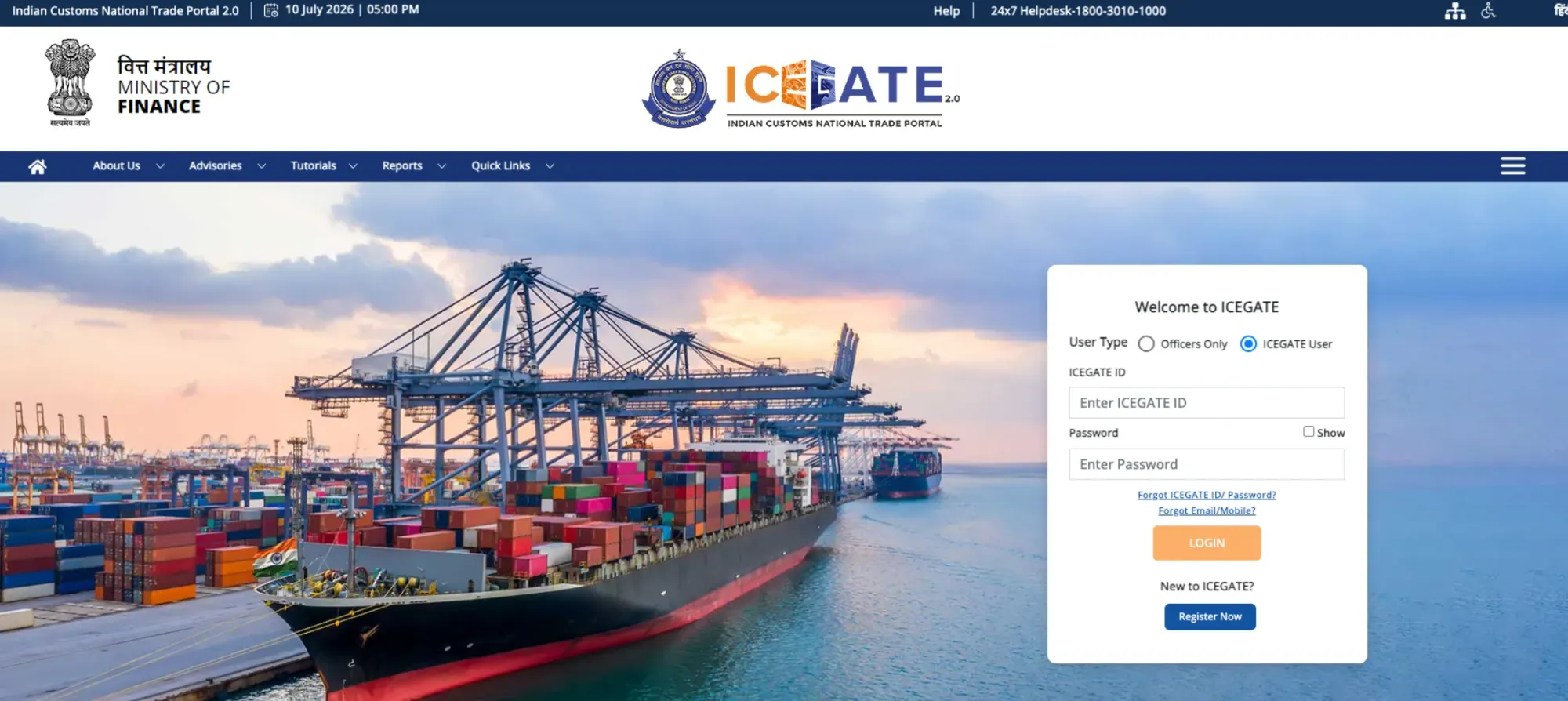
1. Integrate your GSTIN with ICEGATE - on the ICEGATE home page, go to Services → Registration → GSTIN Integration.
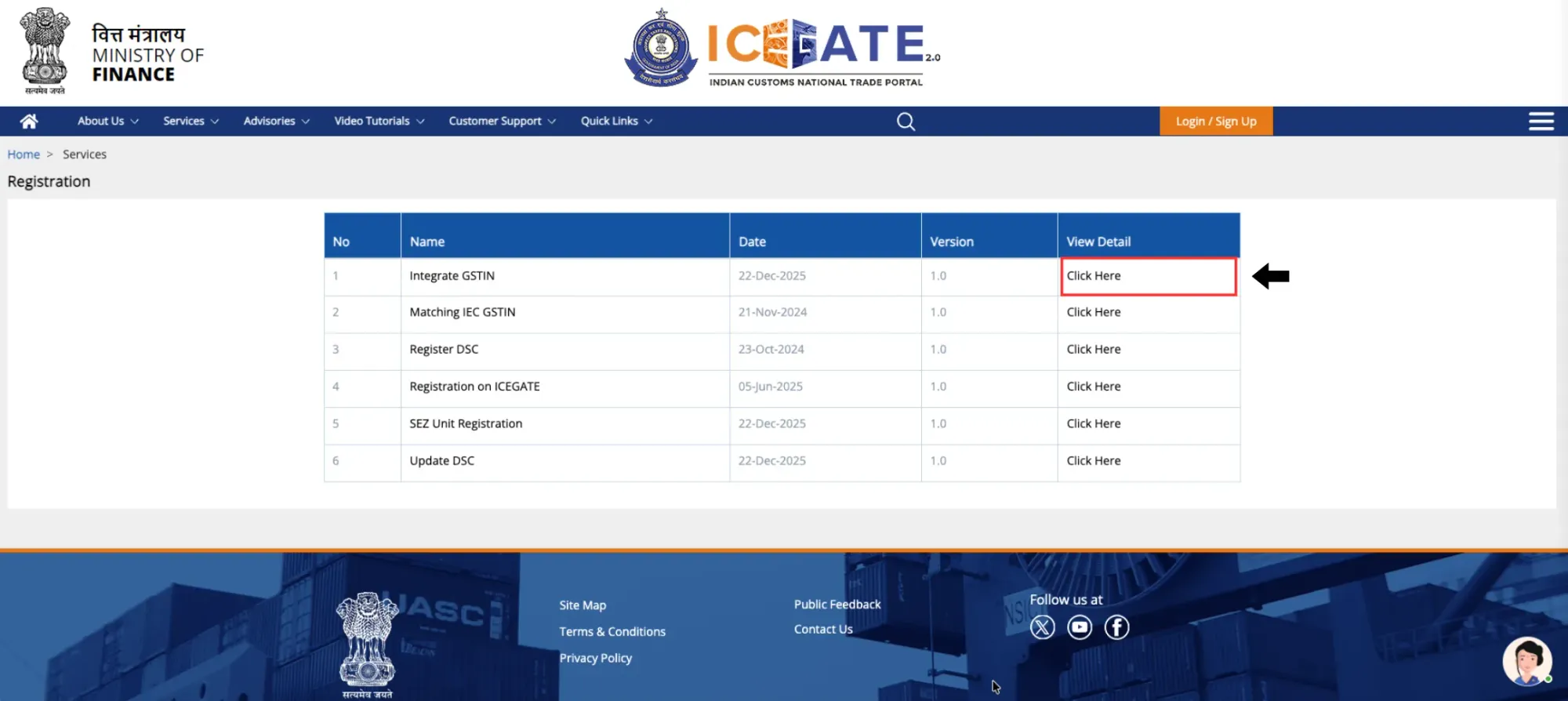
Enter your GSTIN and the CAPTCHA and submit, This registers your GSTIN with customs.
2. Map your IEC to your GSTIN - go to Services → Registration → IEC-GSTIN Mapping ("For Matching IEC GSTIN").
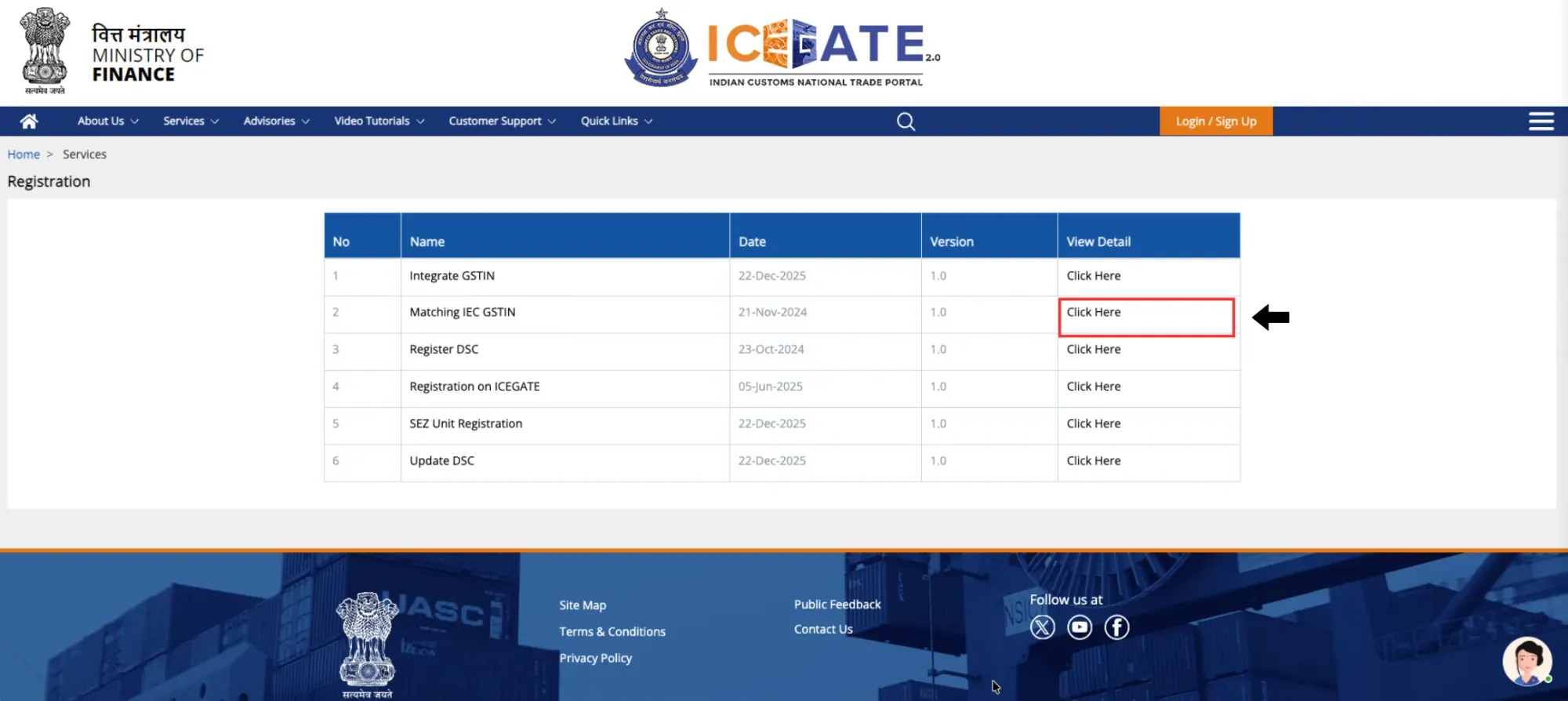
Enter your IEC number, your GSTIN, and the CAPTCHA, then submit. On success you'll see "IEC GSTIN has been updated in System." This is the match that lets customs recognise your IEC and GST as the same entity.
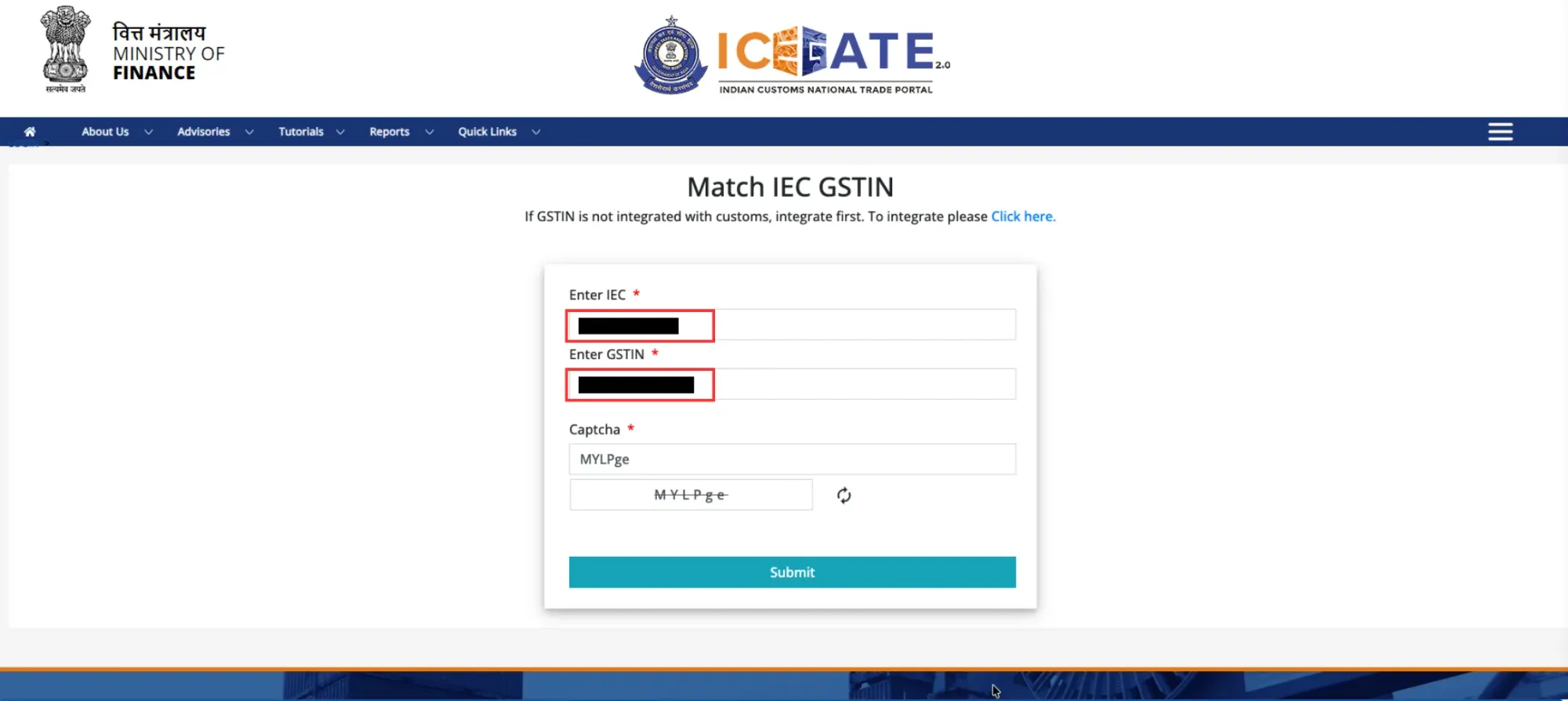
Do these in order - GST integration, then IEC-GSTIN mapping, and only then start Fresh Registration. The single prerequisite that makes all of this work: the mobile and email on your GST profile, your IEC/DGFT profile, and your PAN must be the same. If the IEC was issued before you had GST, or you changed numbers, fix the mismatch at the source (GST portal / DGFT) first. Ninety percent of "the portal rejected" problems are really this mismatch.
The registration flow - Step by step guide:
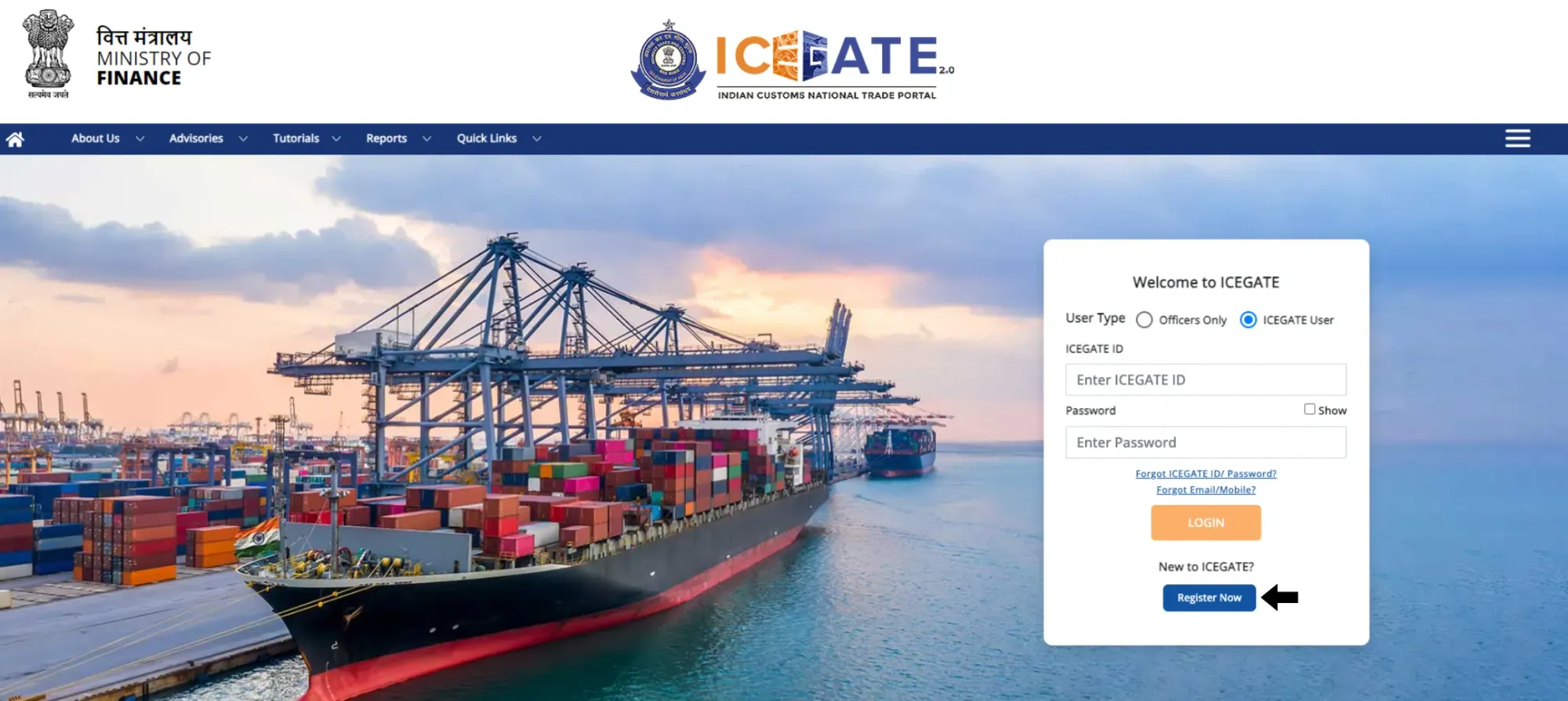
Step #1 - Go to ICEGATE → Login/Sign Up → Register.
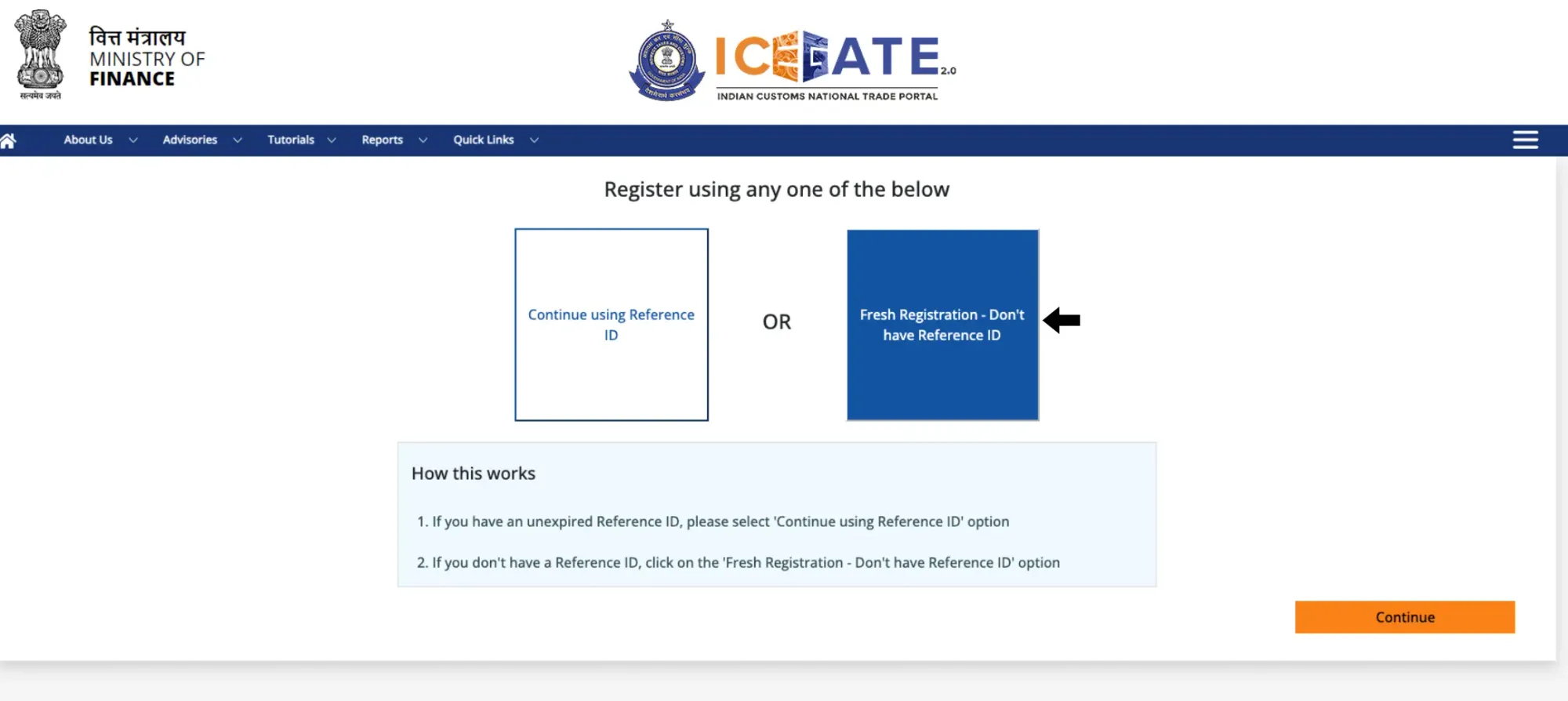
Step #2 - Choose "Fresh Registration - Don't have Reference ID" (or "Continue using Reference ID" if you already started and have an unexpired one).
Step #3 - Select your user type - Importer/Exporter, Customs Broker, Shipping Line, etc.
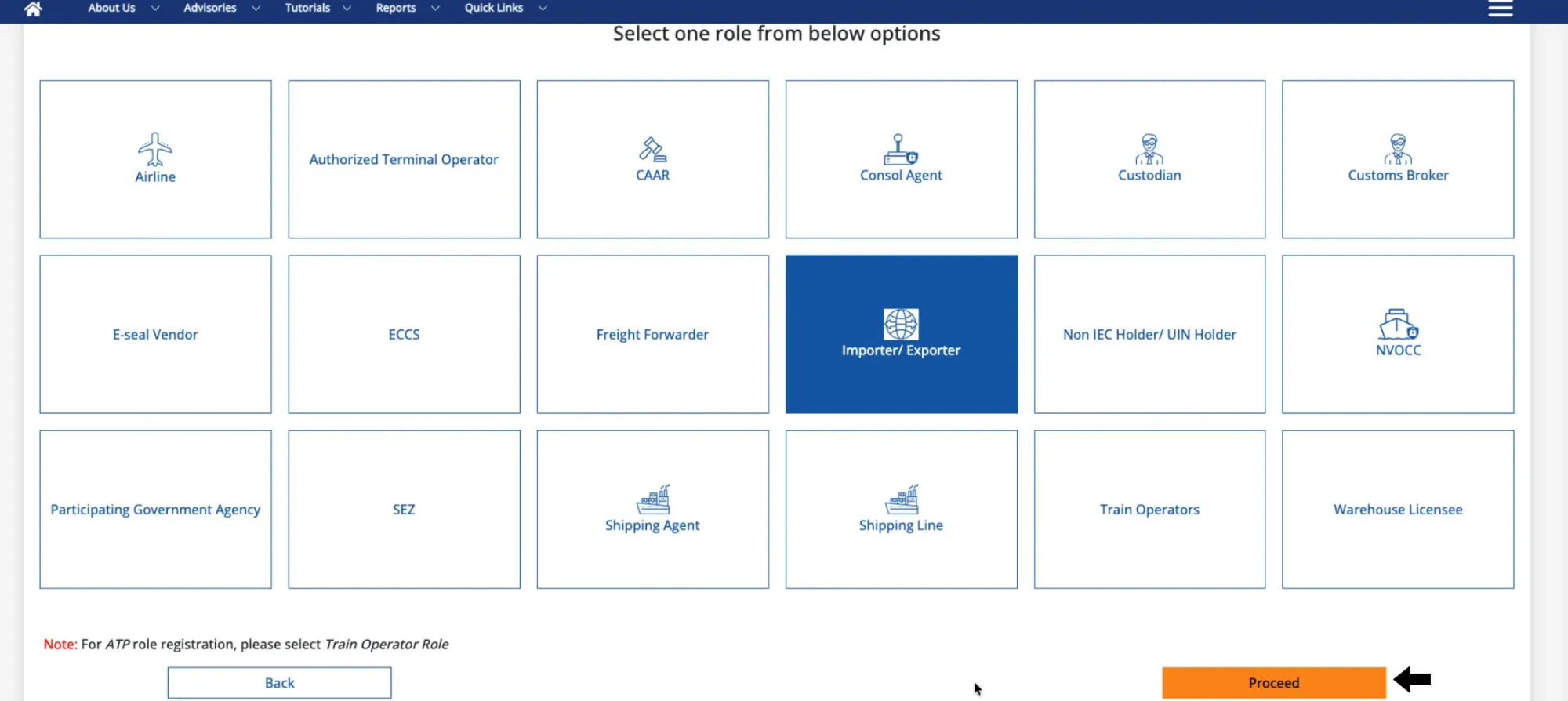
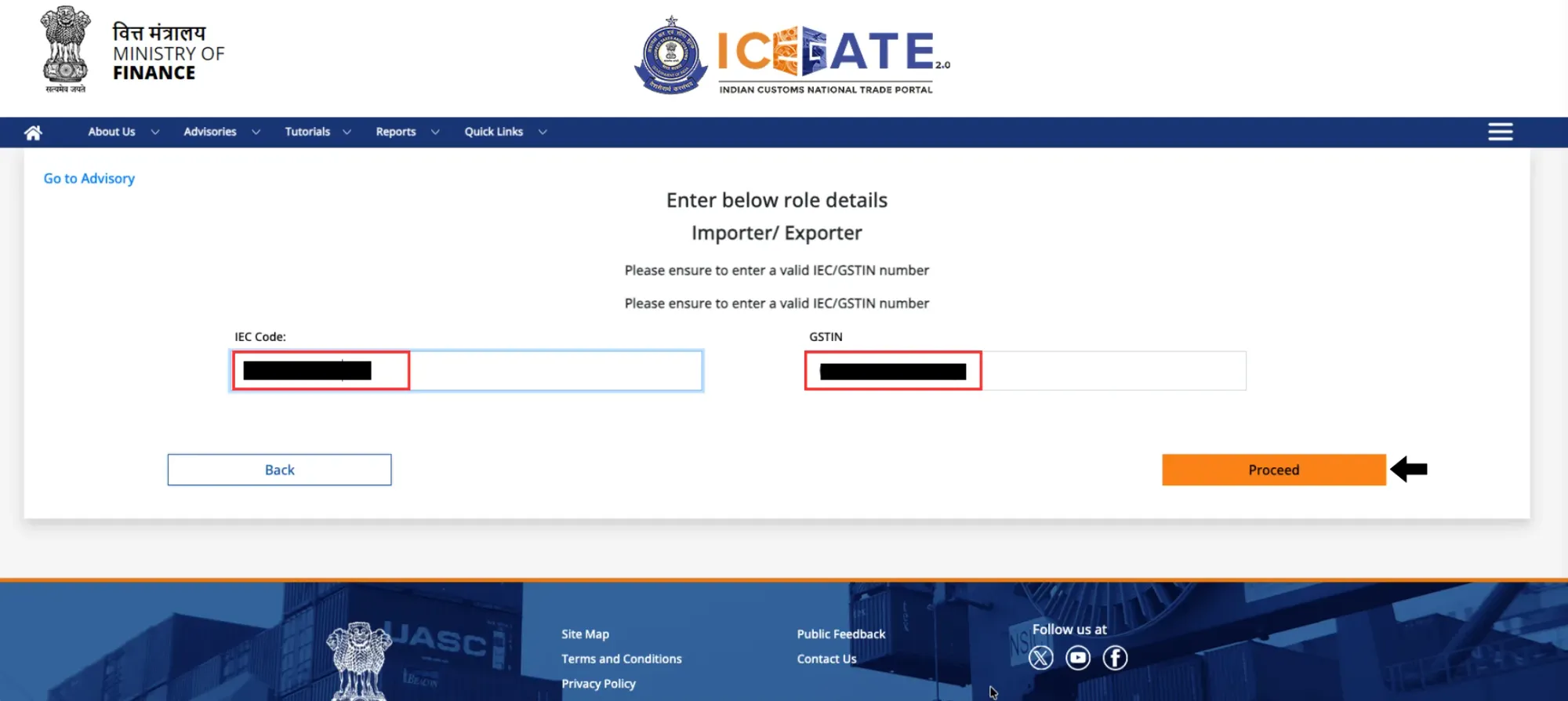
Step #4 - Enter IEC, and GSTIN . ICEGATE validates these live against DGFT and GSTN and fetches your registered contact details.
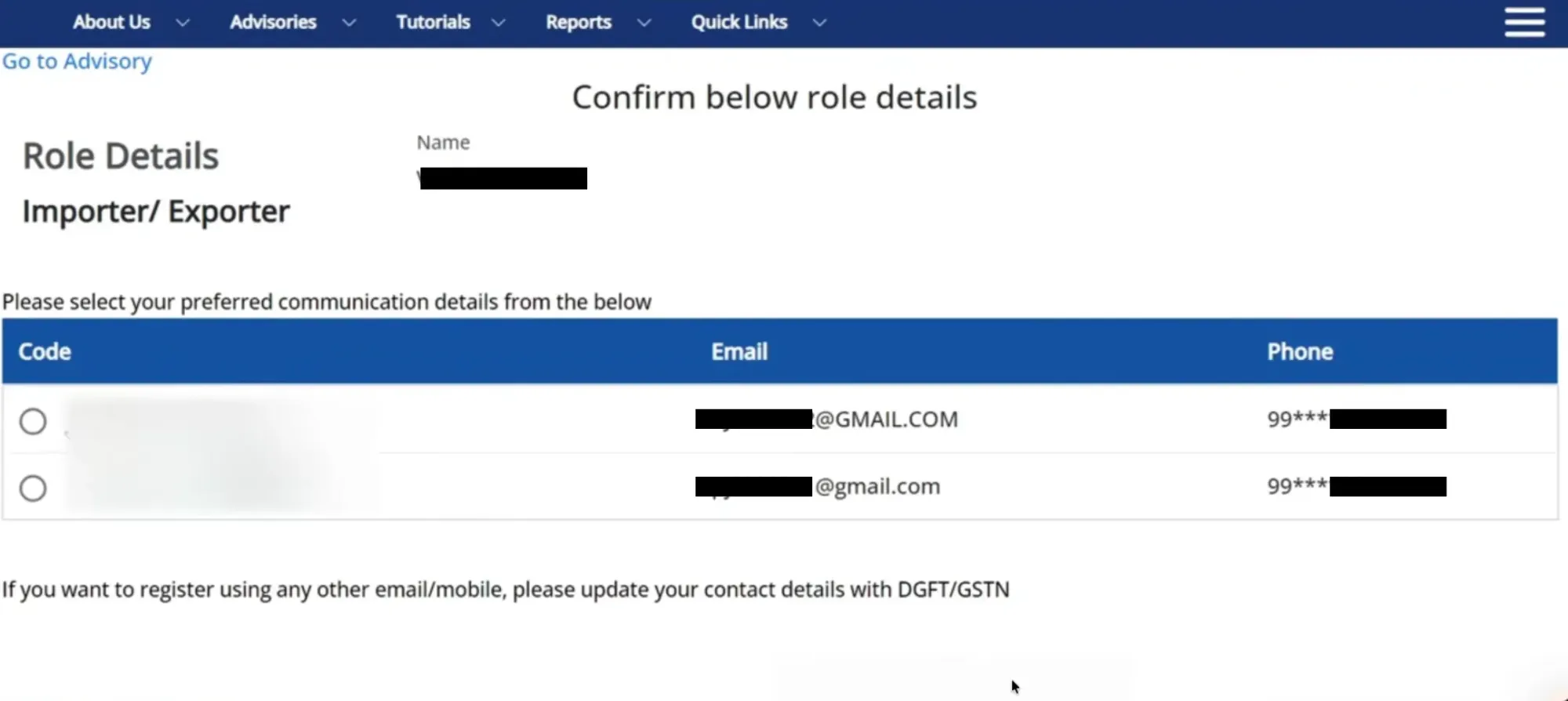
Step #5 - Select the email and mobile to use
Step #5.1 - Verify both by OTP.
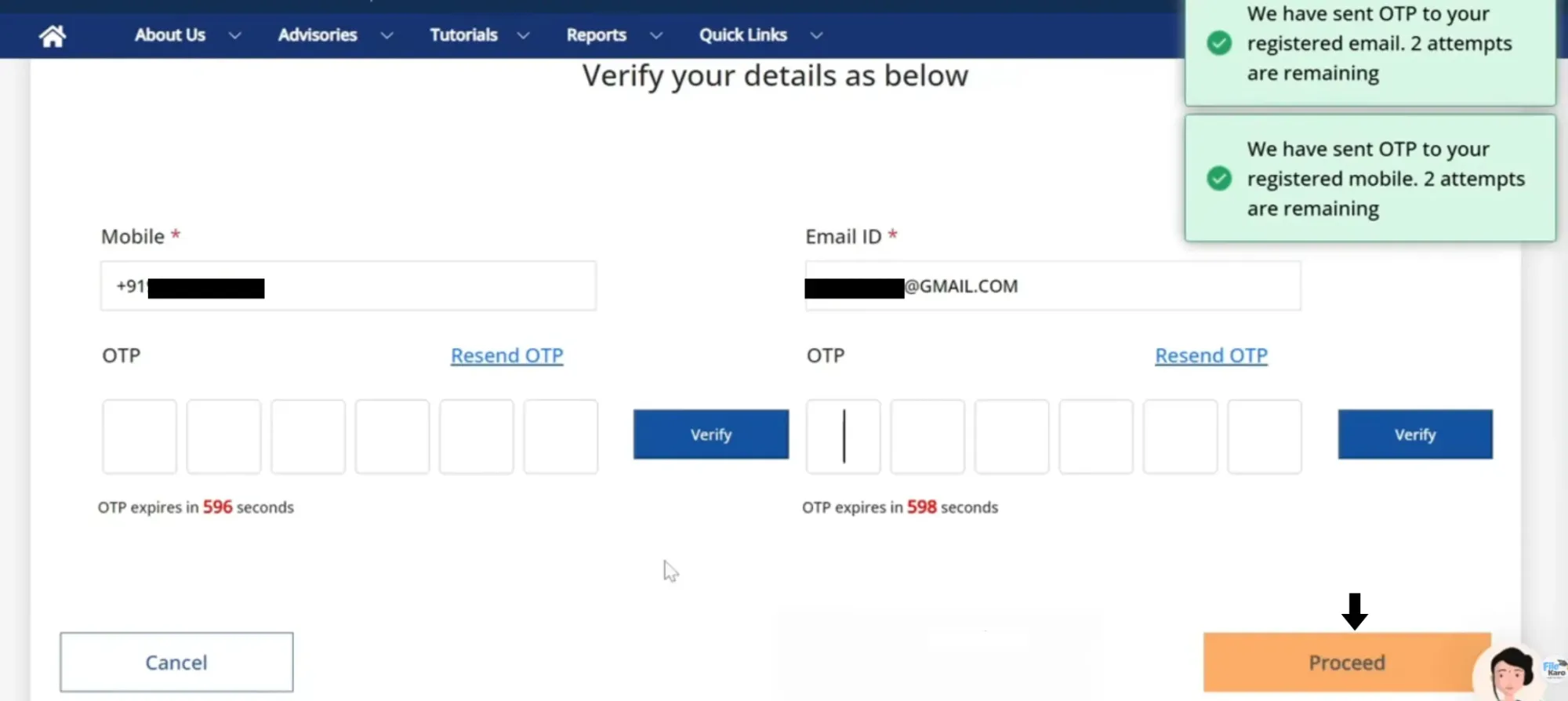
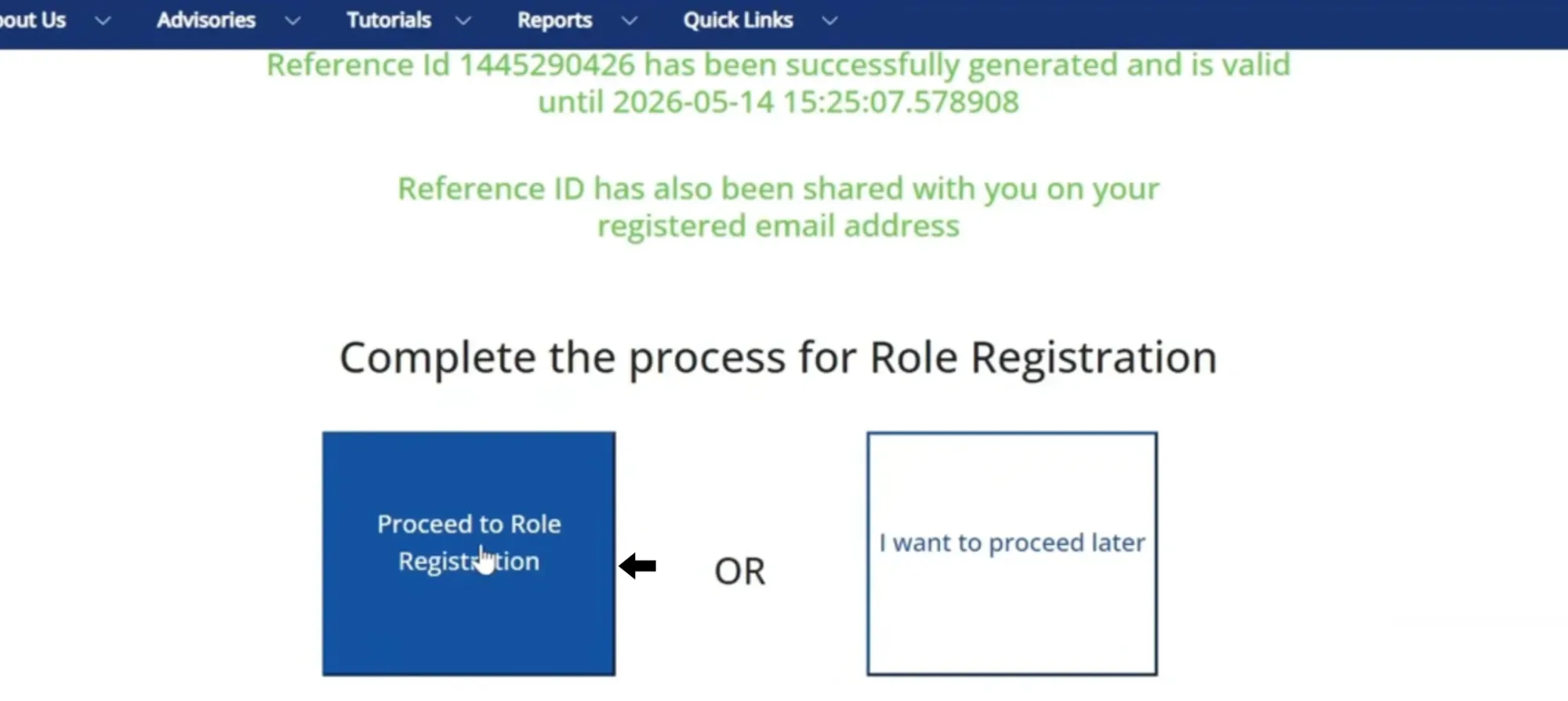
Step #5.2 - A Reference ID is generated so you can resume.
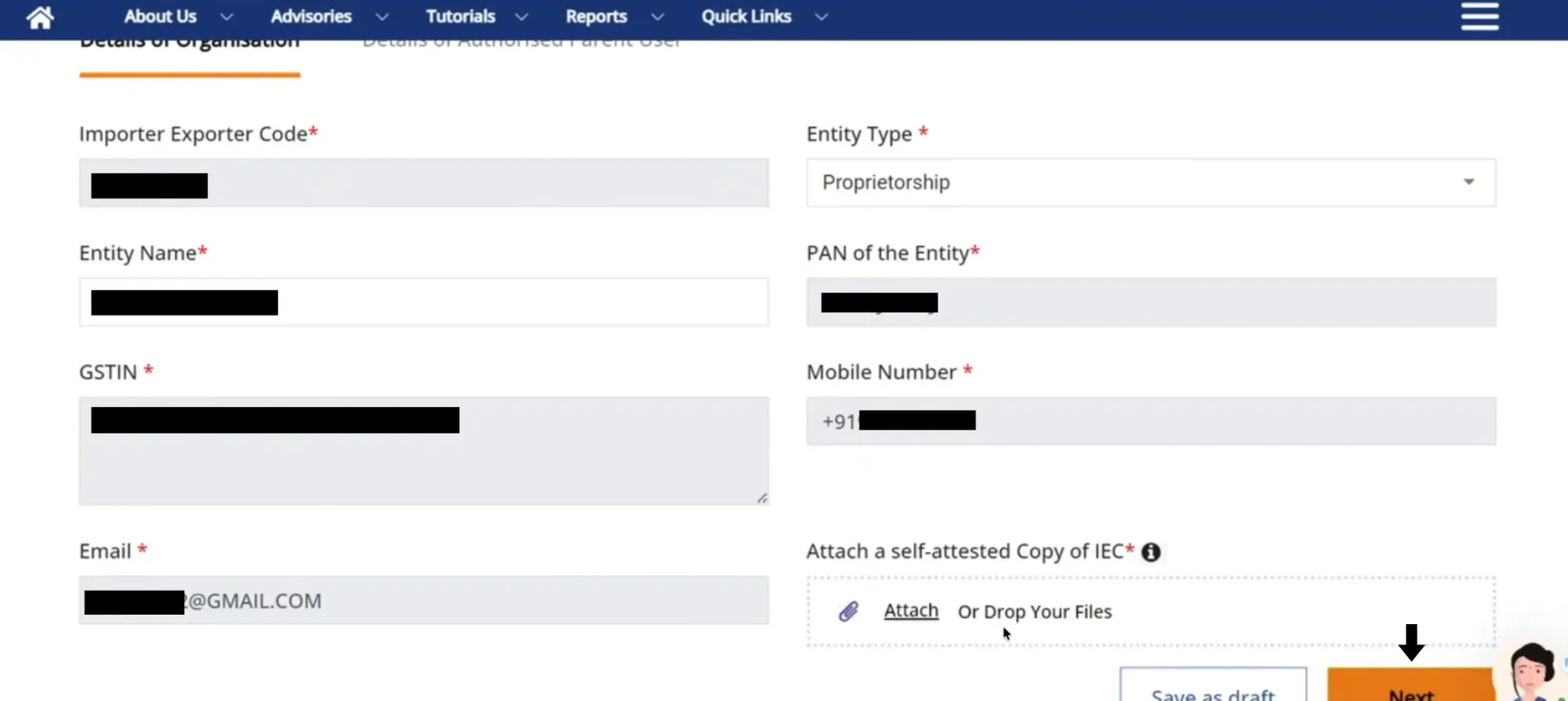
Step #6 - Fill in organisation details.
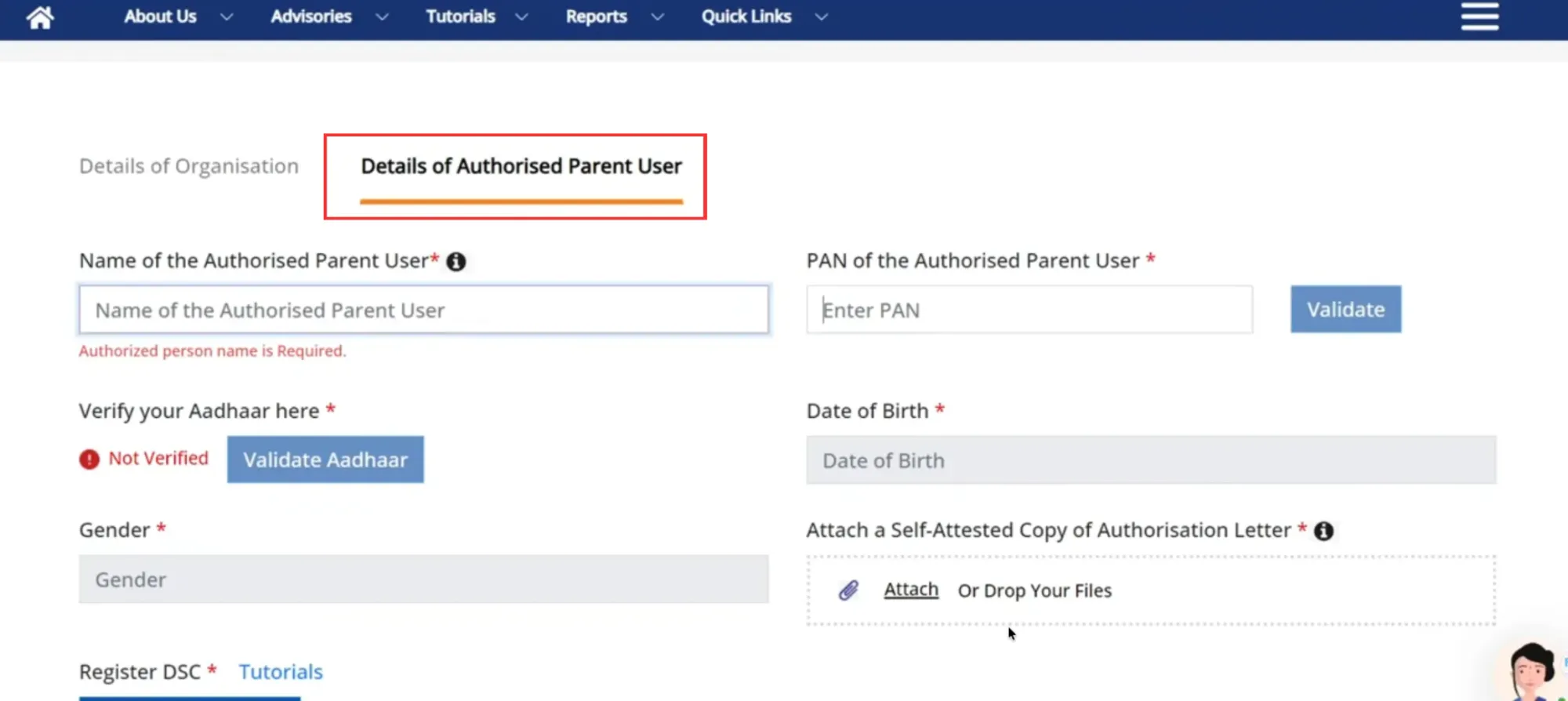
Step #7 - Fill in Authorised Parent User's details.
Step #7.1 - Connect your Class 3 DSC and sign, then upload documents in the required format and size (there should be no gaps in the letters of the uploaded file).
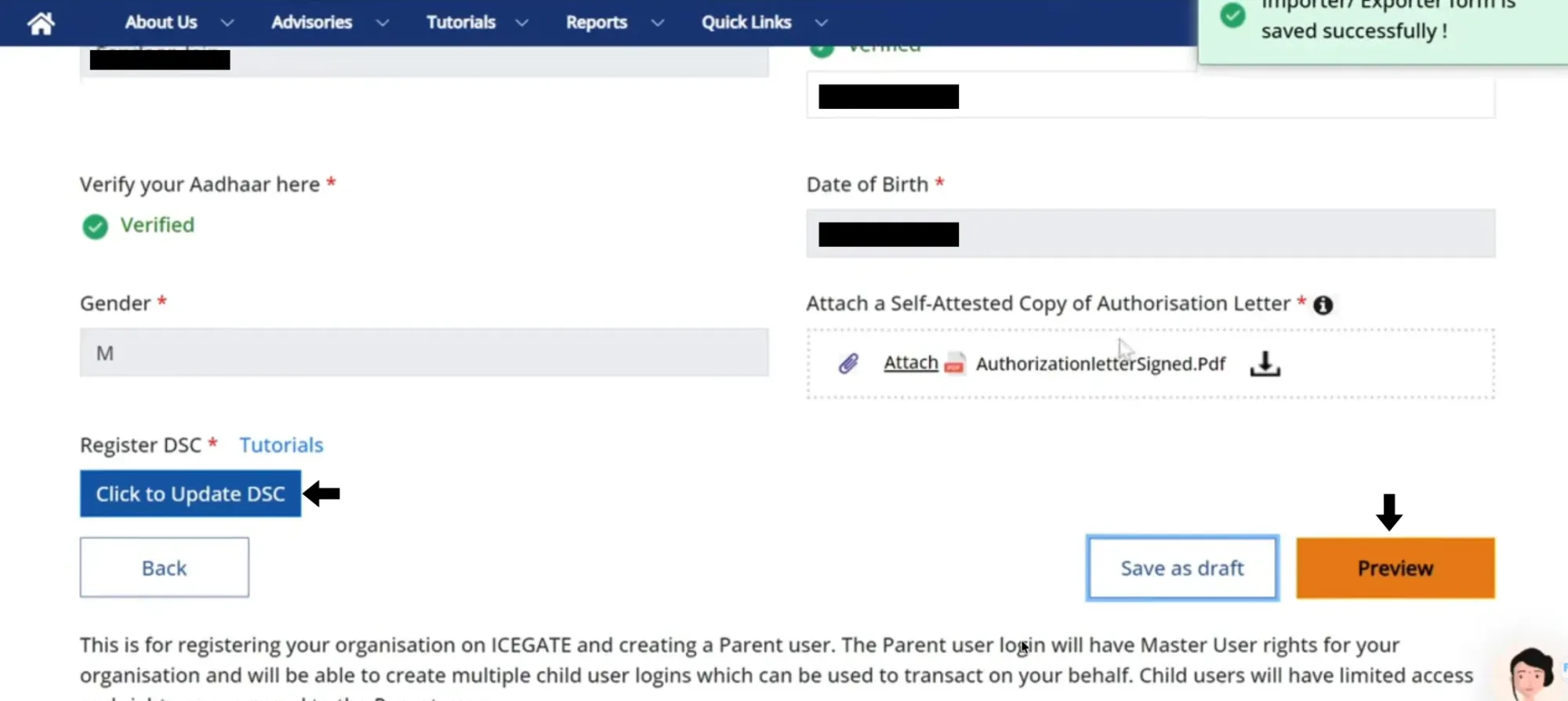
Step #8 - Review and submit.
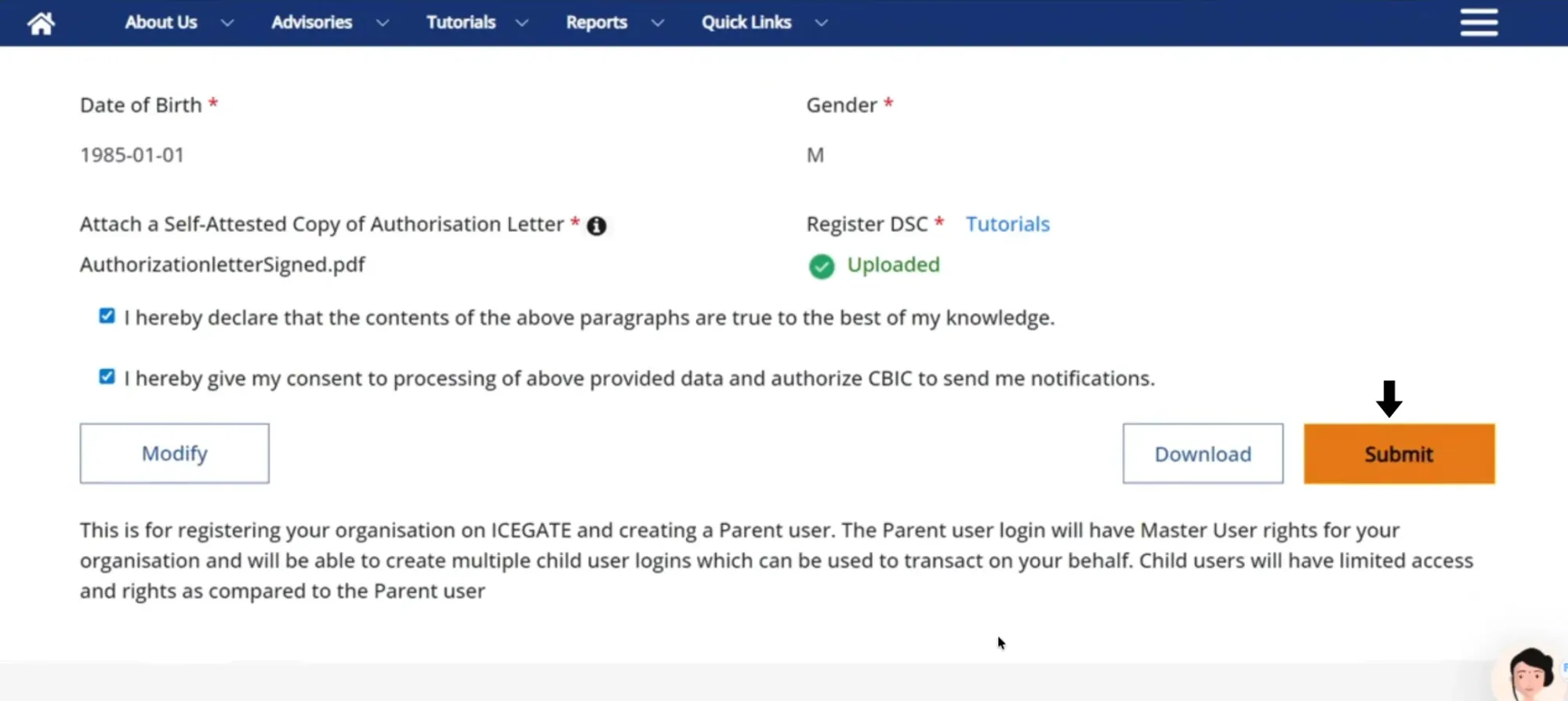
You get an acknowledgement immediately; customs reviews and sends activation by email, usually in 1–3 working days.
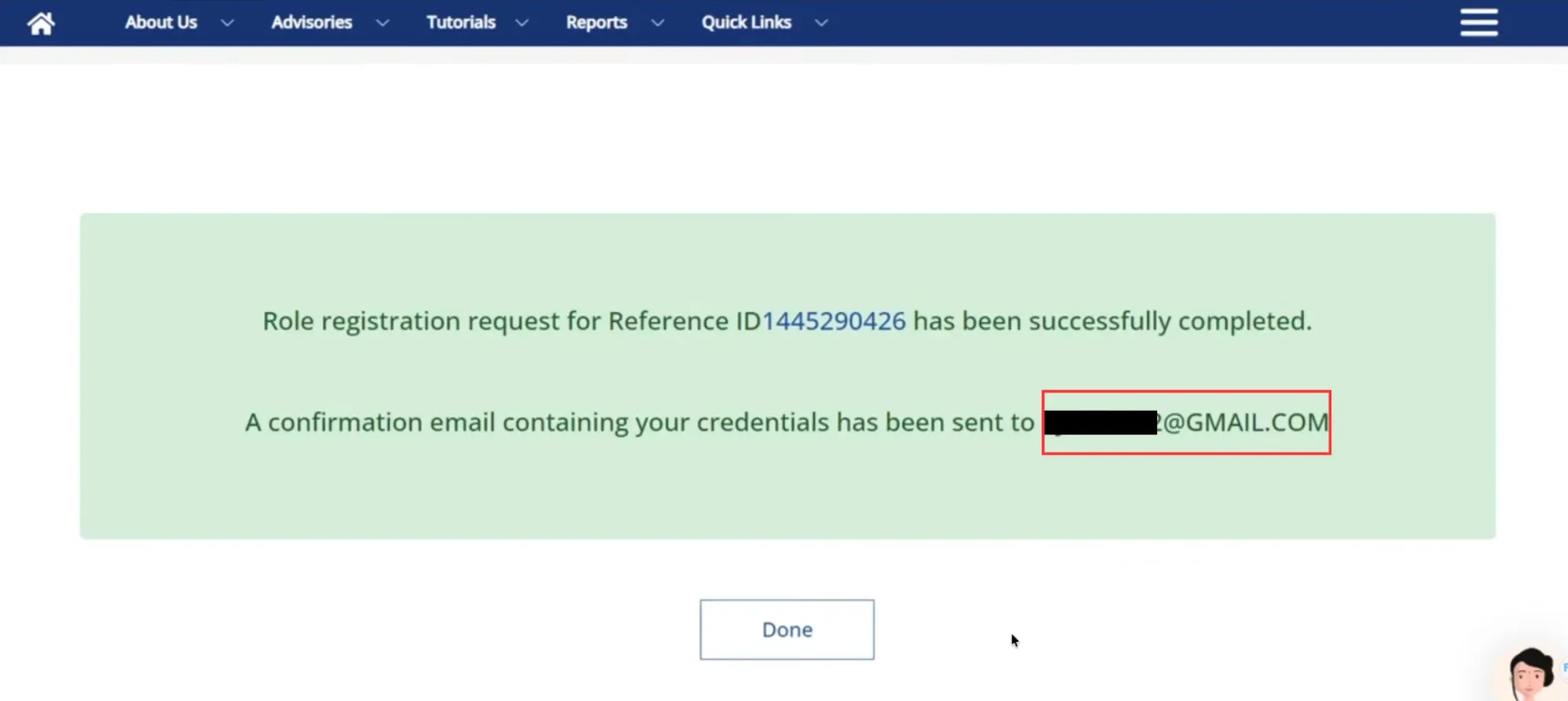
Documents you need: valid IEC (from DGFT), GSTIN, PAN, an email and mobile registered with both GSTN and DGFT, a Class 3 DSC, and an active bank account.
The rejection that is very common - contact-detail mismatch. The mobile or email on the IEC didn't match the one on the GSTIN, so the OTP validation failed and the whole application stalled. Fix that at the source (DGFT / GST portal)
Paying customs duty on ICEGATE in 2026: the ECL model and your four routes
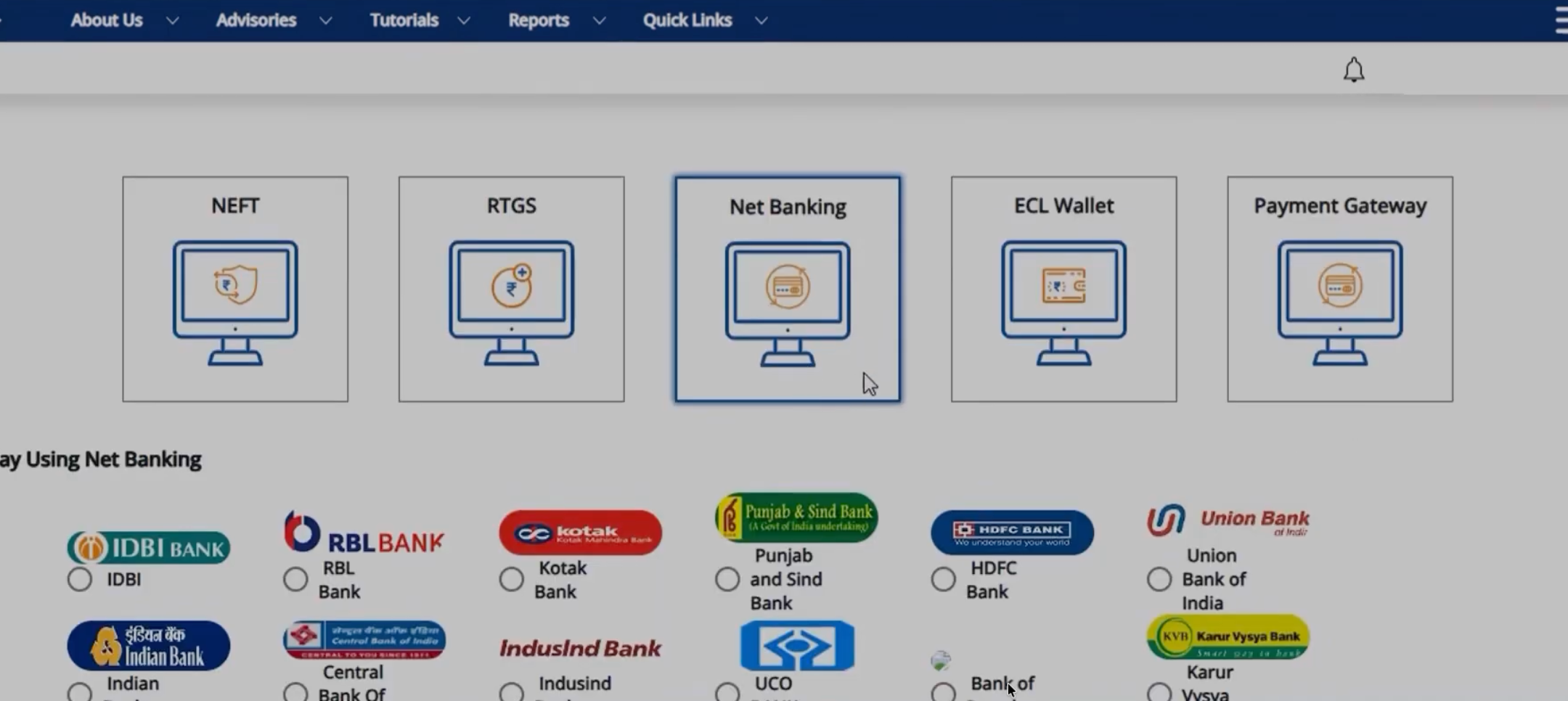
Duty no longer works as "open the challan, pick a bank, pay it." It runs through the Electronic Cash Ledger (ECL) - a prepaid wallet governed by the Customs (Electronic Cash Ledger) Regulations, 2022 and now standard at the major EDI ports. You top the wallet up, then pay any number of Bill of Entry challans from the balance, instantly. The practical win: no more one gateway transaction per BOE, and you can clear several shipments in one go instead of paying each one seperately.
You have four ways to move money into the ledger. Pick by speed and what your bank supports:
Payment route | How it works | Best for | Watch-outs |
UPI / Credit / Debit card (new Payment Aggregator, Circular 13/2026) | Pay via the ICEGATE Payment Aggregator, routed through ECL in real time | Fast, low-value, occasional payments; anyone without a listed net-banking bank | Any bank commission is borne by you; live on onboarded banks (ICICI, IOB, SBI, HDFC first) |
Internet banking (authorised banks, now up to 41) | Net-banking from a supported bank, into the ledger | Regular filers whose bank is on the list | Confined to authorised banks; instant when supported |
NEFT / RTGS (via RBI) | Generate a mandate, transfer to top up the ECL wallet | Large top-ups; banks not on the net-banking list | Depends on banking hours; can take time to reflect - top up before the BOE hits the payment stage |
ECL wallet balance | Debit your pre-loaded ledger to pay challans | High-frequency importers | Requires the ledger activated and funded in advance |
Downloading your Shipping Bill or Bill of Entry after Public Enquiries 2.0
Since February 2026 the path changed. To pull a document's status or download a copy:
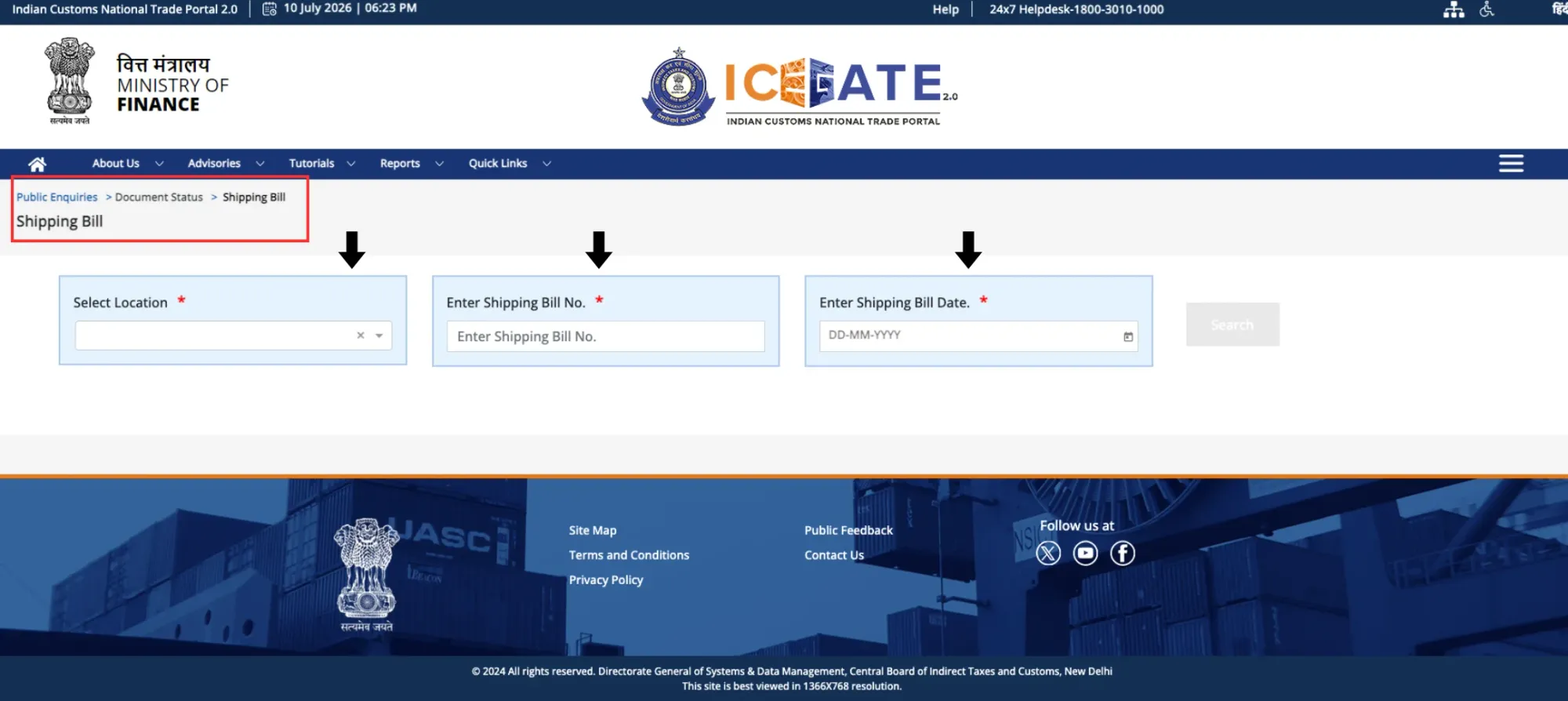
- Go to icegate.gov.in → Services → Enquiry.
- Open Public Enquiries 2.0.
- Choose Document Status, then the relevant type (Bill of Entry / Shipping Bill / SAM-IGM).
- Enter your location (customs port code) and the document or reference number, complete the CAPTCHA, and search.
You can check status as a guest without logging in. To download the final, digitally signed PDF of your Shipping Bill or Bill of Entry, you must log in with your registered ICEGATE credentials. Document download is free, as many times as you need. (For the full export-side walkthrough, see our guide on downloading your Shipping Bill from ICEGATE.)
AD Code registration on ICEGATE (the short version)
Before you can generate a Shipping Bill at a port, your bank's Authorised Dealer (AD) Code has to be registered against your IEC at that port. In ICEGATE 2.0 it lives under Financial Services → Bank Account Management → Authorised Dealer Code Registration, with supporting documents uploaded first. We've covered this end to end process in this blog - AD Code: Meaning, Full Form, Registration Process, Format & Complete Guide (2026).
What changed on ICEGATE in 2026
Three shifts happened after most published guides went live. If a guide doesn't mention them, it's not up to date.
1. Duty payment now runs through the Electronic Cash Ledger, and you can finally use UPI and cards. This is the big one. Direct "pay this challan from your bank" is being phased out. Money now flows through the Electronic Cash Ledger (ECL) - a prepaid wallet on ICEGATE you top up, then debit against any number of Bills of Entry. On top of that, CBIC's Circular No. 13/2026 (24 March 2026), backed by Notification No. 30/2026-Customs, launched a Payment Aggregator that, for the first time, lets you pay customs duty by credit card, debit card, and UPI, and expands net-banking access to 41 banks. ICICI, Indian Overseas Bank, SBI and HDFC were onboarded first, with more in phases. Full breakdown below.
2. Tracking and document downloads moved to Public Enquiries 2.0. ICEGATE rolled out Public Enquiry 2.0 in February 2026. The old enquiry links and legacy status pages are gone; everything now sits under a single "Public Enquiries 2.0" dashboard under Services >> Enquiry. If you bookmarked an old tracking URL, it no longer works.
3. Registration is now a Reference-ID flow under ICEGATE 2.0. New registrations start as either "Fresh Registration - Don't have Reference ID" or "Continue using Reference ID," and the portal validates you live against GSTN and DGFT before you go further. There's also a real fork between Simplified and Full registration that trips people up, details below.
Frequently Asked Questions
Frequently Asked Questions
Yes. You can't legally clear commercial imports or exports through Indian Customs without an active ICEGATE registration against your IEC.
Nothing. It's free. Any fee you pay is to an agent, not to CBIC
Yes. Since CBIC Circular 13/2026 (24 March 2026), the ICEGATE Payment Aggregator supports UPI, credit and debit cards, routed through the Electronic Cash Ledger. Any bank commission is borne by you.
A prepaid wallet on ICEGATE. You top it up (UPI/card, net-banking or NEFT/RTGS) and pay any number of duty challans from the balance - including several shipments at once.
Services → Enquiry → Public Enquiries 2.0 → Document Status. Status is viewable as a guest; the signed PDF requires login. It's free.
Usually a wrong port code or a reference-number/BL mismatch, or the carrier hasn't filed yet. Confirm the port code and the exact number before assuming the portal is down.
Typically 1-3 working days, longer in peak periods, provided your GSTN/DGFT contact details match.